Import a track into Topo GPS
This is a step-by-step guide to adding a track to Topo GPS. The screenshots show how to do it on an iPhone using Safari. The procedure is much the same on Android.
We suggest downloading and importing the tracks well before Elfsborgsmarschen, so you don’t have to fiddle with it on the morning of the march, when you’re in a hurry to set off.
Choose your track
Open the browser on your phone. Visit the page with all the tracks. Find the track you want to import into Topo GPS. Tap the GPX ↓ button next to the track’s map.
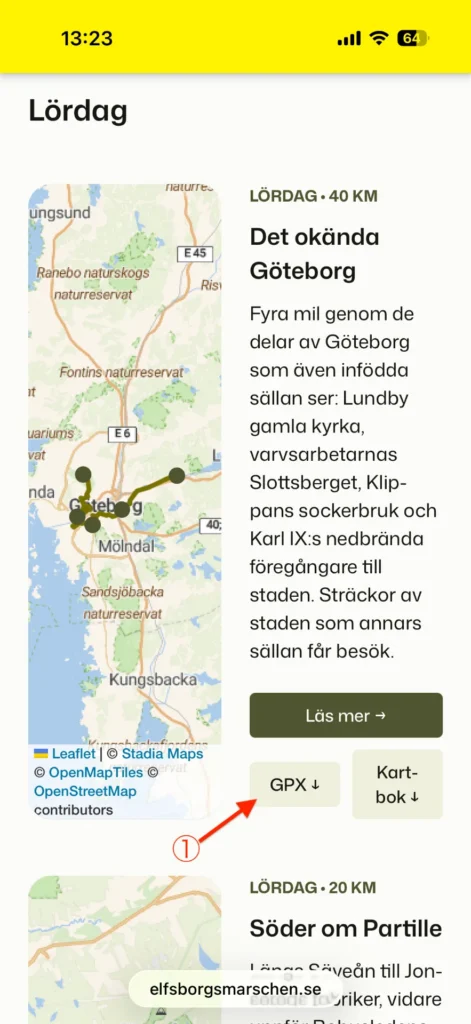
Download the GPX file
Allow the GPX file to download to your phone.
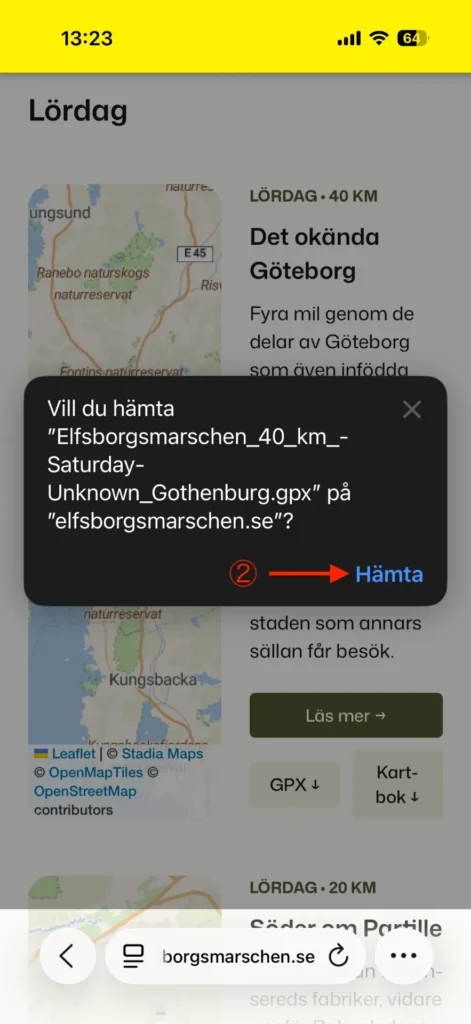
Open Topo GPS
Close the browser and open Topo GPS instead.
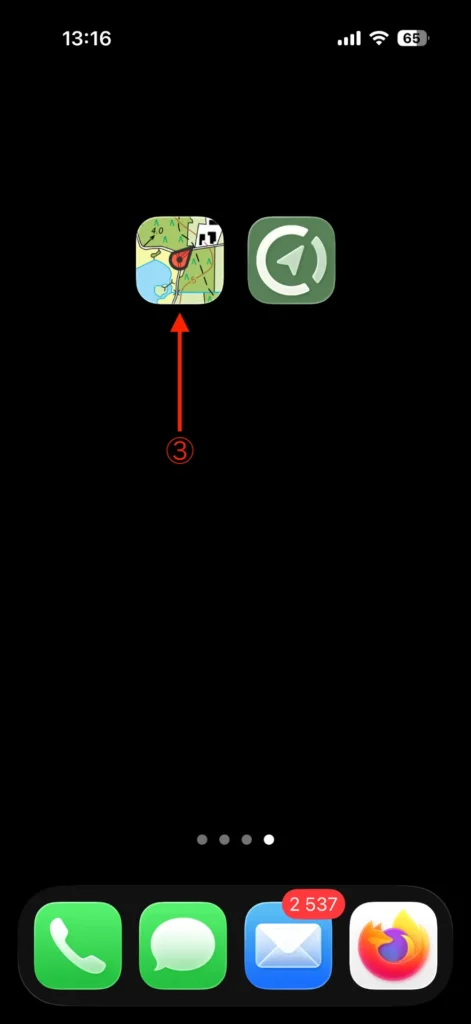
Open More
At the bottom of the screen you’ll see a grey overlay. Swipe it up to reveal a toolbar. The last icon has three dots in a circle, with More below it. Tap it.
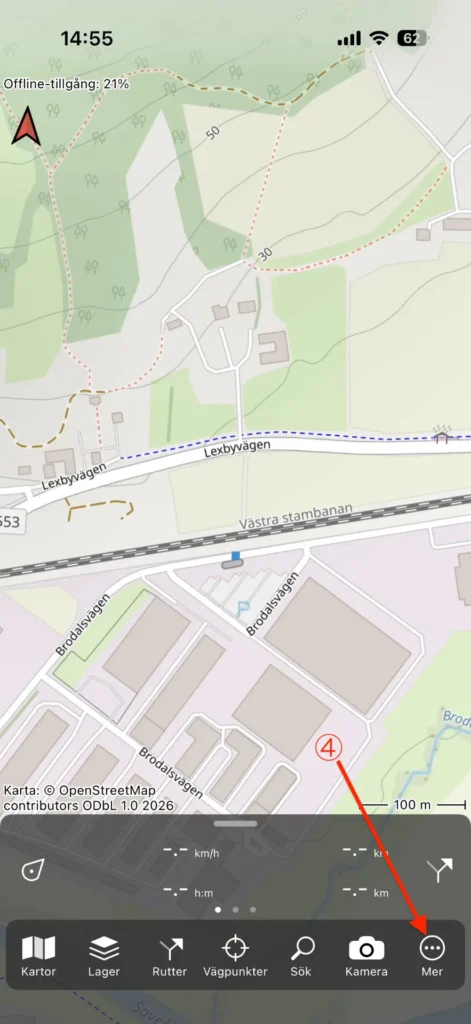
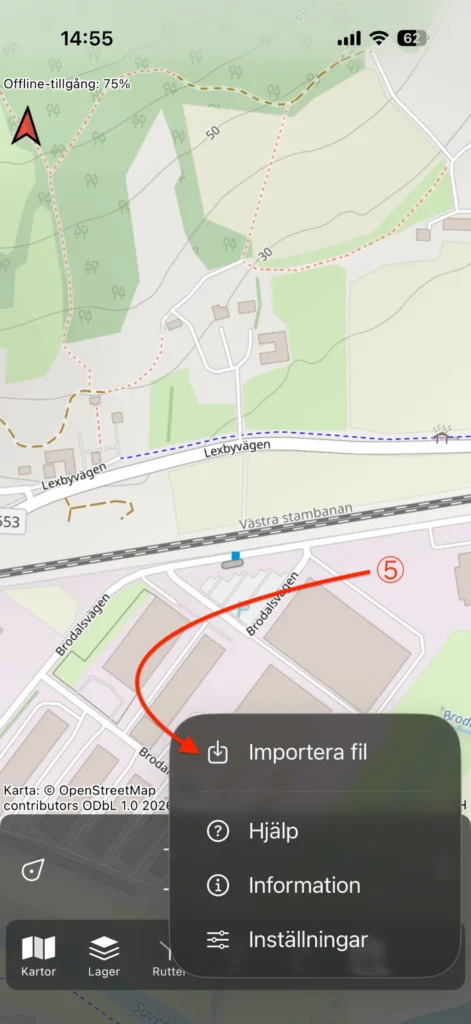
Import file
Tap the option to import a file.
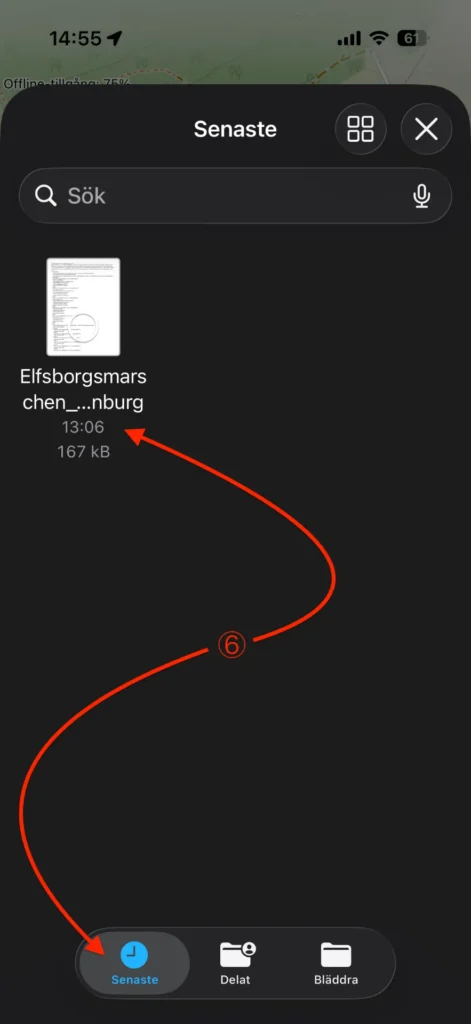
Select the downloaded file
Find the downloaded file. If you used Safari in steps ① and ② above, you can tap Recents at the bottom of the screen. Tap the downloaded file to select it.
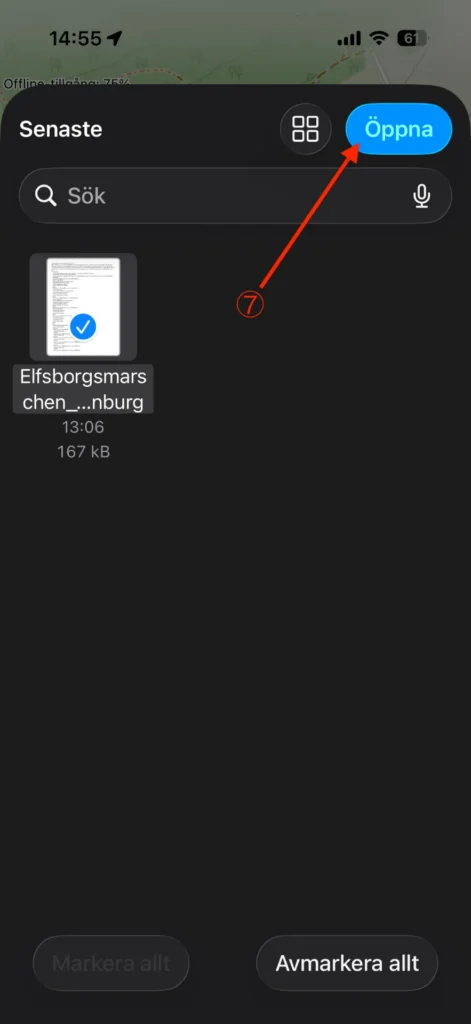
Open the file
Tap the Open button in the top-right corner.
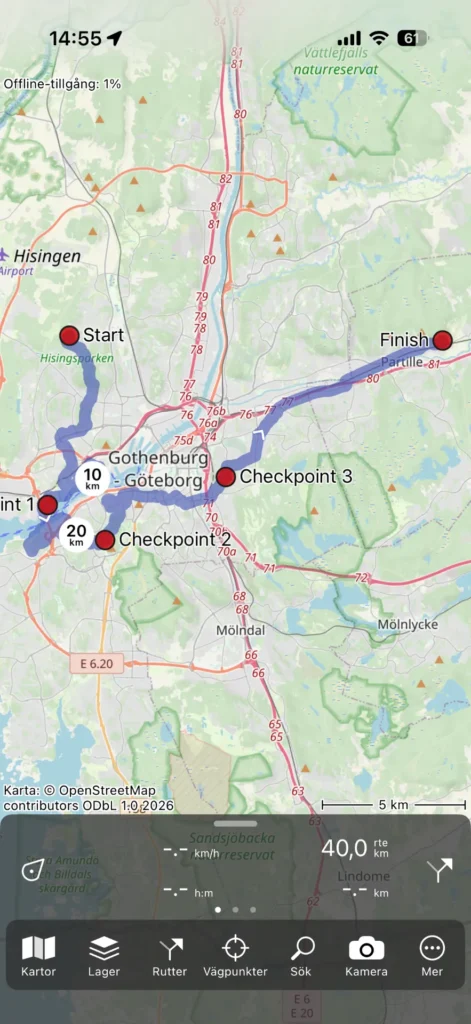
Check the track
Check that the track is showing. While you’re at it, zoom in and pan around to take a look at the track.
Tip
An alternative way to add the track is to find the file in Files (iOS) or My Files (Android), tap it, then choose Share (iOS) or Open with (Android), and select Topo GPS.